The crew board is the screen the iPad opens to and the screen it sits on for most of the day. It's the live, at-a-glance view of who's on board, who's ashore, and who's on leave: the whole crew, organised by department, ready for a captain or watchkeeper to read in two seconds.
Almost everything crew need to do day-to-day happens here: signing themselves in or out, checking who else is on board, updating their own photo. This article covers all of it.
What you're looking at
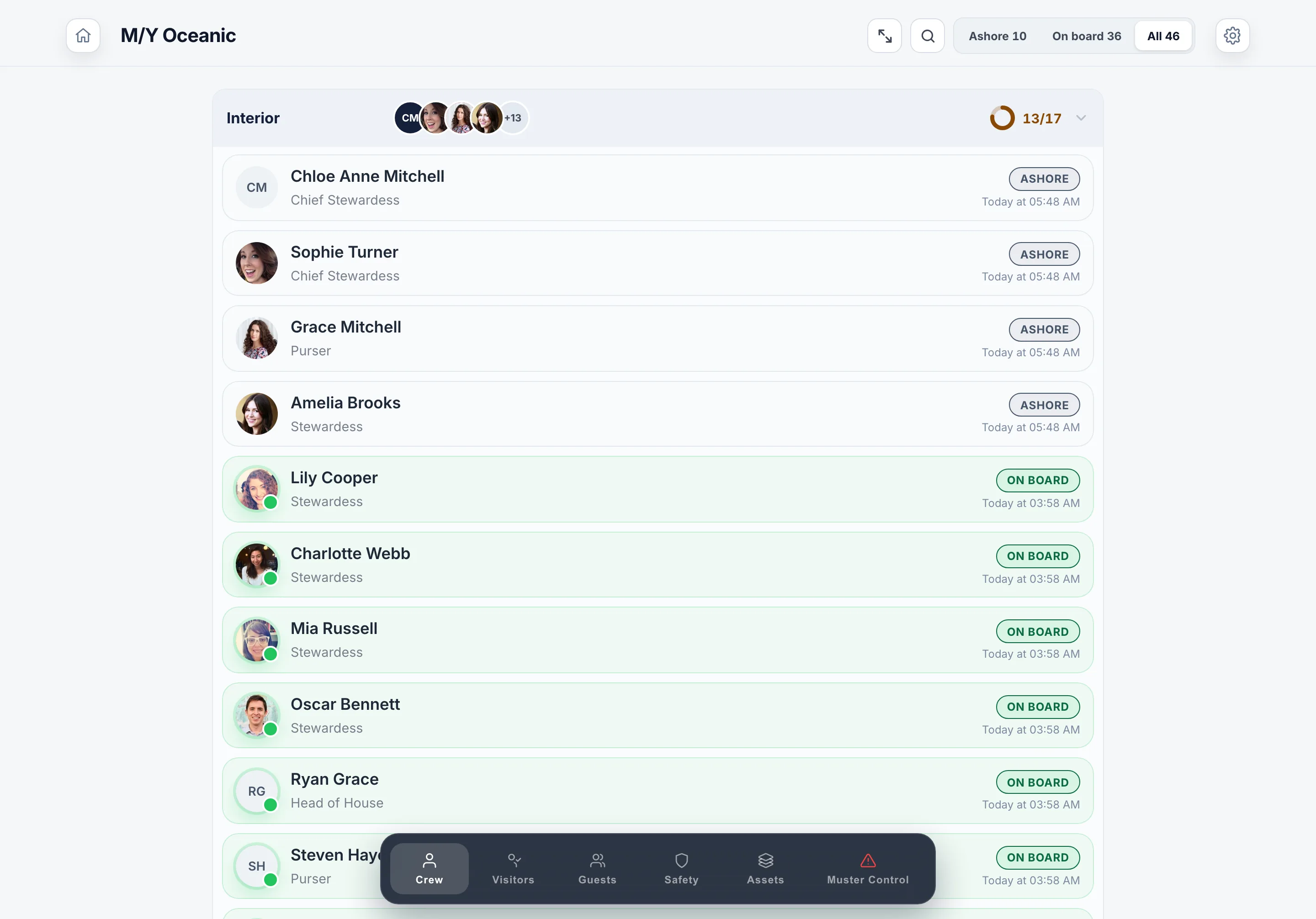
Each row on the crew board is one crew member. From left to right you'll see:
- Avatar: the crew member's photo, or their initials in a coloured circle if no photo has been uploaded yet
- Full name and rank: name on top, rank below (e.g. "Chief Officer", "2nd Stewardess")
- Department: visible in the section header that groups crew together (Deck, Engineering, Interior, Galley, etc.)
- Status pill on the right: a coloured indicator showing the current status
The status pills use two colours so you can read the board at a distance:
- Green: On board. The crew member is currently on the vessel.
- Grey: Ashore. The crew member has signed out and is off the vessel. The exact time they signed ashore is shown next to the pill.
Crew on leave don't appear on the board at all. They're hidden entirely so the live view only shows crew who are actually active. More on this below.
Swipe to sign in or out
The most common interaction on the crew board is also the simplest: swipe a row left or right to flip the status.
- Swipe right on a row to sign that crew member on board. The pill flips to green.
- Swipe left on a row to sign them ashore. The pill flips to grey and the time of departure is recorded next to it.
It's deliberately physical and quick: a deckhand walking past the iPad on their way ashore can sign themselves out in under a second without typing anything. Each swipe is logged with the timestamp, the device the swipe came from, and the device's name, so the audit trail in the admin panel always knows who was signed in or out, when, and from which iPad.
If a crew member signs out by mistake, just swipe the other way to undo it. The previous status returns immediately and the audit log records both events. There's no "delete this entry" button because nothing on the audit trail can be silently rewritten.
Tap an avatar to update a photo
If a crew member doesn't have a photo yet, the avatar shows their initials in a coloured circle. To add a photo, tap the avatar. The iPad opens its camera, the crew member takes a photo of themselves (or someone else takes it for them), and the new image saves immediately to the crew record.
Tapping an existing avatar lets you replace it with a new one, useful if someone has had a haircut, lost the beard, or just wants their photo updated. The change syncs to every iPad on the vessel within a couple of seconds, and the new photo also appears on the muster list, the visitor host dropdown, and the abandon ship station view.
If you'd rather upload a photo from a computer (better lighting, better camera, taken before joining), do it from the admin panel under Crew → click the crew member → upload photo. Both methods produce the same result.
Crew on leave are hidden by default
When a crew member is marked as on leave in the admin panel, they disappear from the crew board entirely. They're not deleted: their record is still there, their muster station assignment is still saved, and their visitor history is intact. They're just hidden from the live view because they're not actually on the vessel.
The crew board is the one place the rule is that simple. The muster list works differently, because a muster list is organised by position rather than by person: an on-leave crew member is dropped only when an active crew member holds the same muster rank, and otherwise the position still appears with the rank shown and the name blank. That is covered in the muster list article.
When the crew member returns from leave, an admin flips the toggle in the admin panel and they reappear on every iPad on the vessel within a few seconds. There's nothing to re-import.
Pull down to refresh
The crew board updates in real time over WebSocket whenever something changes: a swipe on another iPad, an admin edit in the admin panel, a new crew member added. You don't normally need to refresh anything manually.
If you ever do want to force a sync (for example, after the iPad has been offline for a while and you want to be sure), just pull down on the crew board and release. A small spinner shows for a second while the iPad re-fetches the latest crew data from the server, then the board updates.
What the crew board is NOT for
A few things deliberately don't live on the crew board because they belong elsewhere:
- Adding new crew members: done from the admin panel. The crew board is read-and-swipe only; structural changes happen at admin.themusterapp.com.
- Marking someone as on leave: also admin-only. Swiping ashore is a temporary "they walked off the vessel" event; on leave is a longer-term "they're not on board for the next two weeks" state.
- Editing names, ranks, departments: admin only.
- Deleting crew members: admin only. The iPad never lets you destroy data.
This split is deliberate. The iPad is designed to be safe for any crew member to pick up and use: they can sign themselves in or out, take a photo, and read the muster list, but they can't accidentally remove a colleague from the vessel.
Offline behaviour
The crew board works completely offline. Every swipe, every photo update, every search continues to function with no internet: the iPad just queues the change locally and syncs it to the server the moment WiFi is back. There's a yellow "no internet" banner at the top of the screen so you know the iPad is offline, but nothing is blocked.
If two iPads are offline at the same time and both swipe the same crew member, the iPad that reconnects last wins. In practice this is almost never an issue because crew don't tend to be in two places at once.
What to read next
If you've got the basics of the crew board, the natural next step is the visitor board, the same idea but for everyone who isn't a crew member. After that, the muster list and abandon ship is what your crew will read most when training for emergency procedures.