Every feature
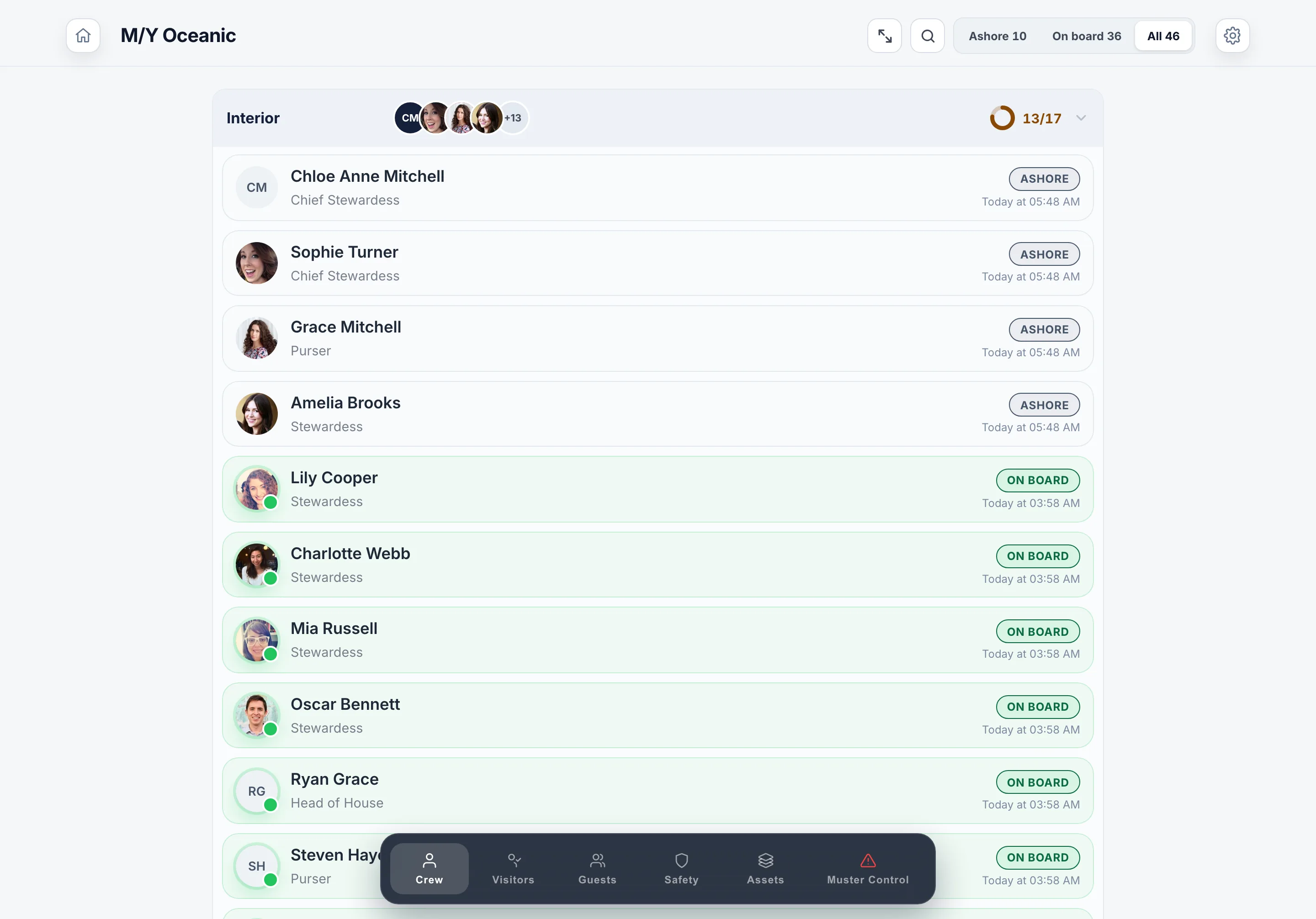
One crew list. Everything reads from it.
A sign-in tool, a rest-hours tool and a training tool have never heard of each other. This is one app, and every part of it knows who is aboard right now.
Free for 14 days. From £110 a month per vessel, unlimited crew. On board vessels 40m to 90m.

Julian Meyer is awaiting clearance at Gangway iPad.
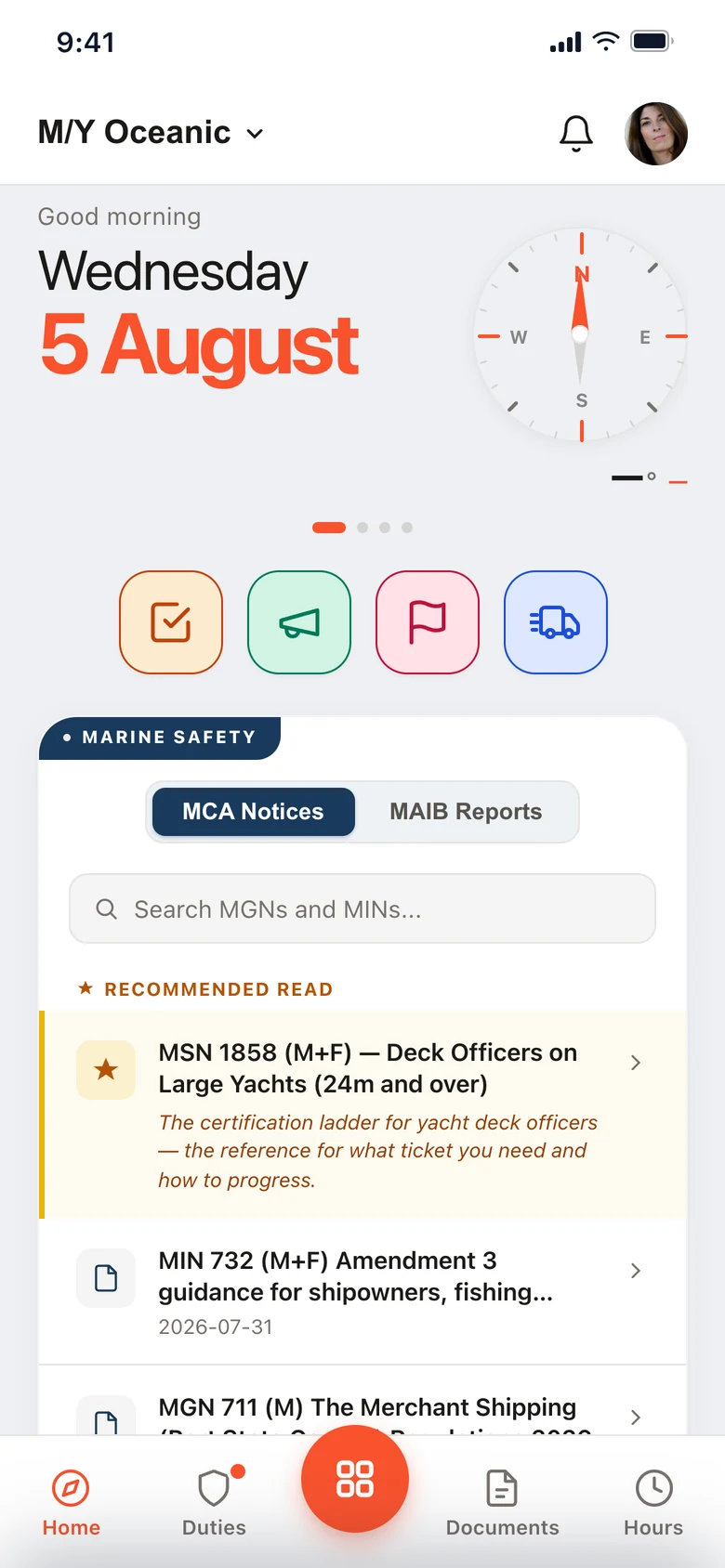
Three days unlogged. Tap to fill them in.
Running on superyachts every day.
Separate apps keep separate crew lists.
Someone joins and their name is typed into three systems. Someone leaves and one of the three keeps them.

A tool for each job
Each one with its own list of names. The muster list is built from a fourth, by hand, and it is right until the day it matters. Nothing knows who stepped ashore ten minutes ago.

The Muster App
One list. The board says who is aboard, a muster counts from that, Hours of Rest tracks the same people, a visitor’s host is a real crew member, and a duty follows whoever holds the rank today.
The working day, start to finish
Nobody boards until they are cleared.
The visitor does the work on the iPad. The vessel gets the record.
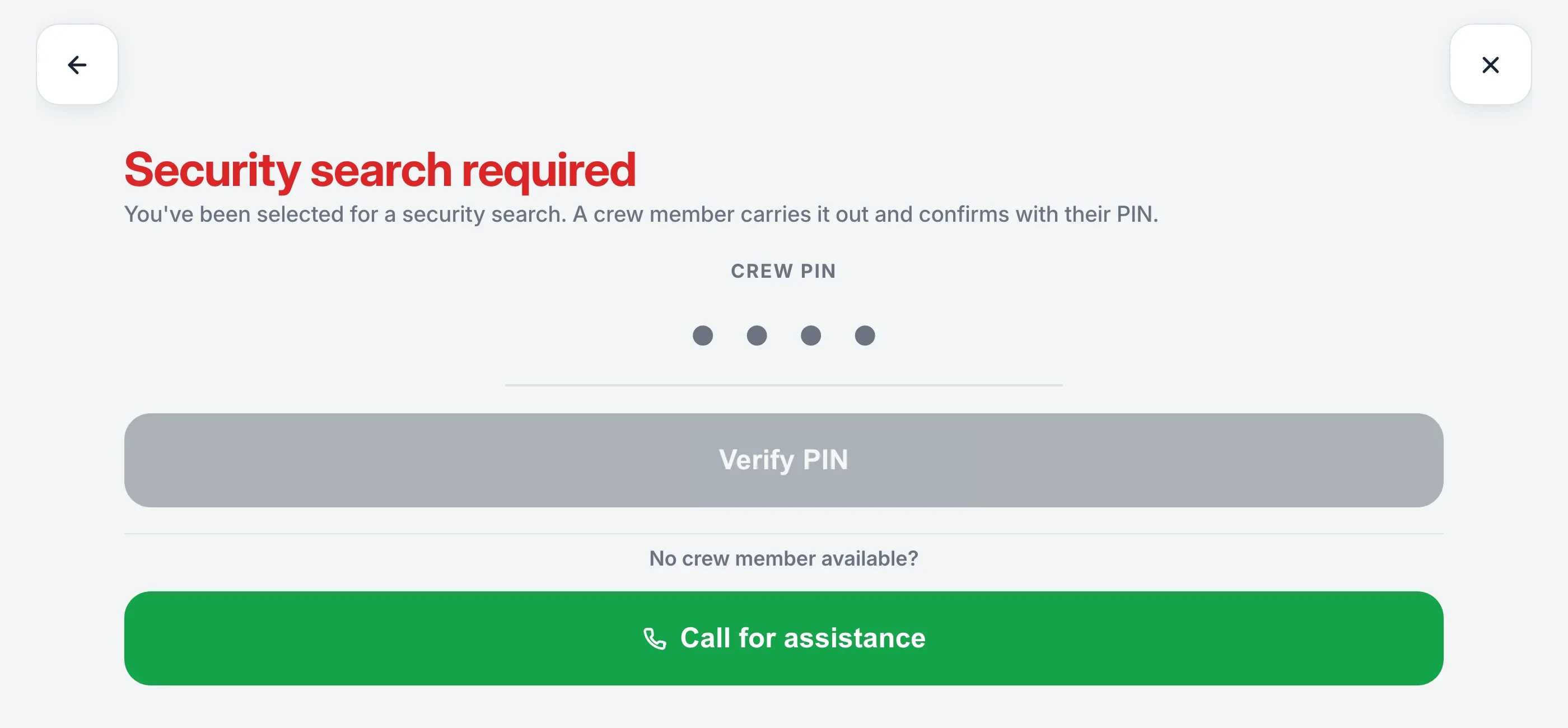
- The search gets asked for. At Level 1 one visitor in twenty, at Level 2 one in five, at Level 3 everyone — your own rates. The check-in holds on screen, the right crew member is alerted, and a 4-digit PIN clears it.
- Switch the level and the door follows. What a visitor is asked, and what every crew phone is told, changes the moment you switch.
- Your agreement, signed. NDAs, safety waivers and your own wording, signed on the kiosk and filed against the visitor. A badge prints with their name, company and host.
- Guests are counted, not processed. The owner’s party skip sign-in, the agreement and the photo. They carry a cabin and a document, and they are on the muster roster like anyone else aboard.
- Passport OCR at the door
- Flagged visitors remembered
- Host’s phone gets the photo
- Works when the WiFi drops
- PDF for port state control
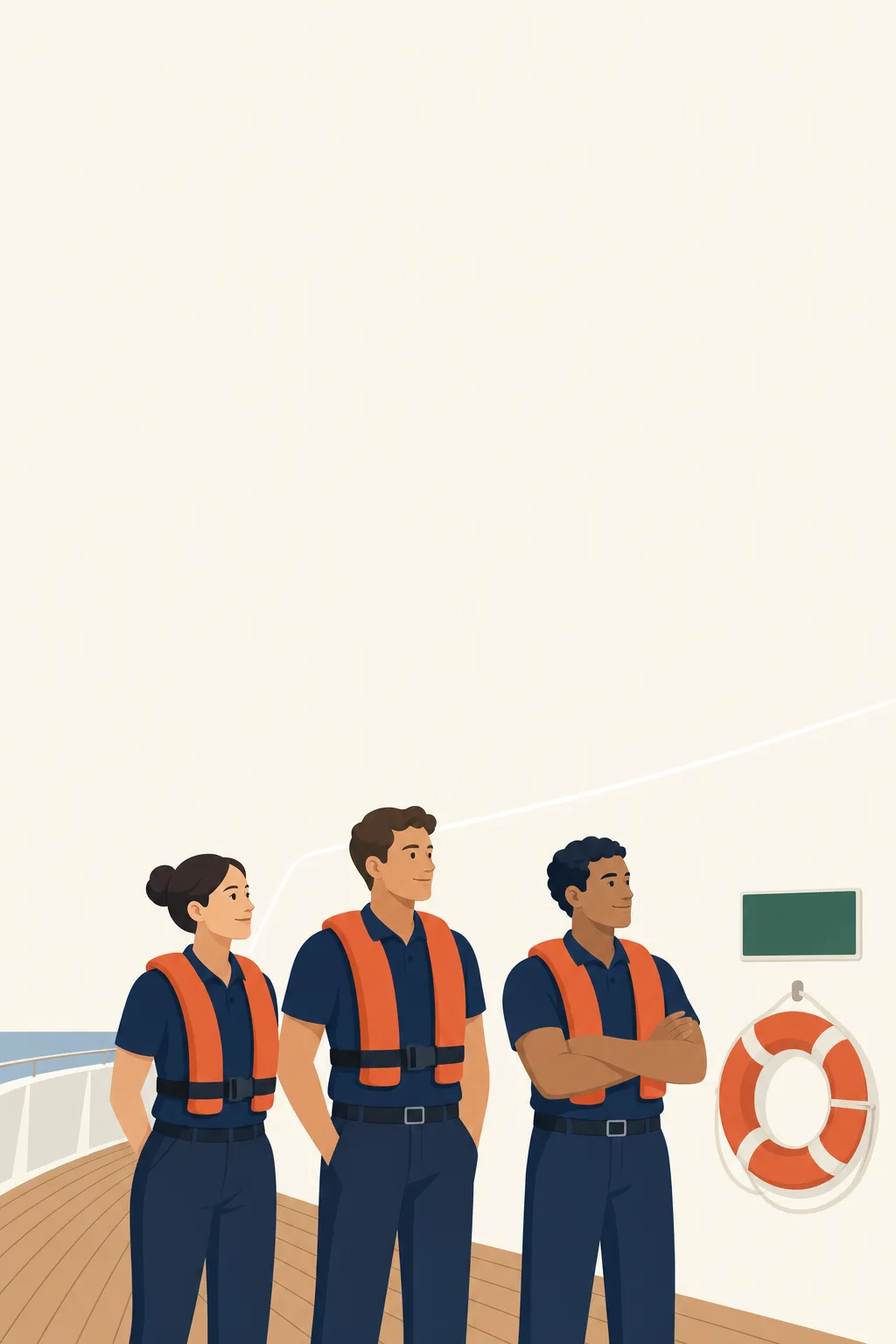
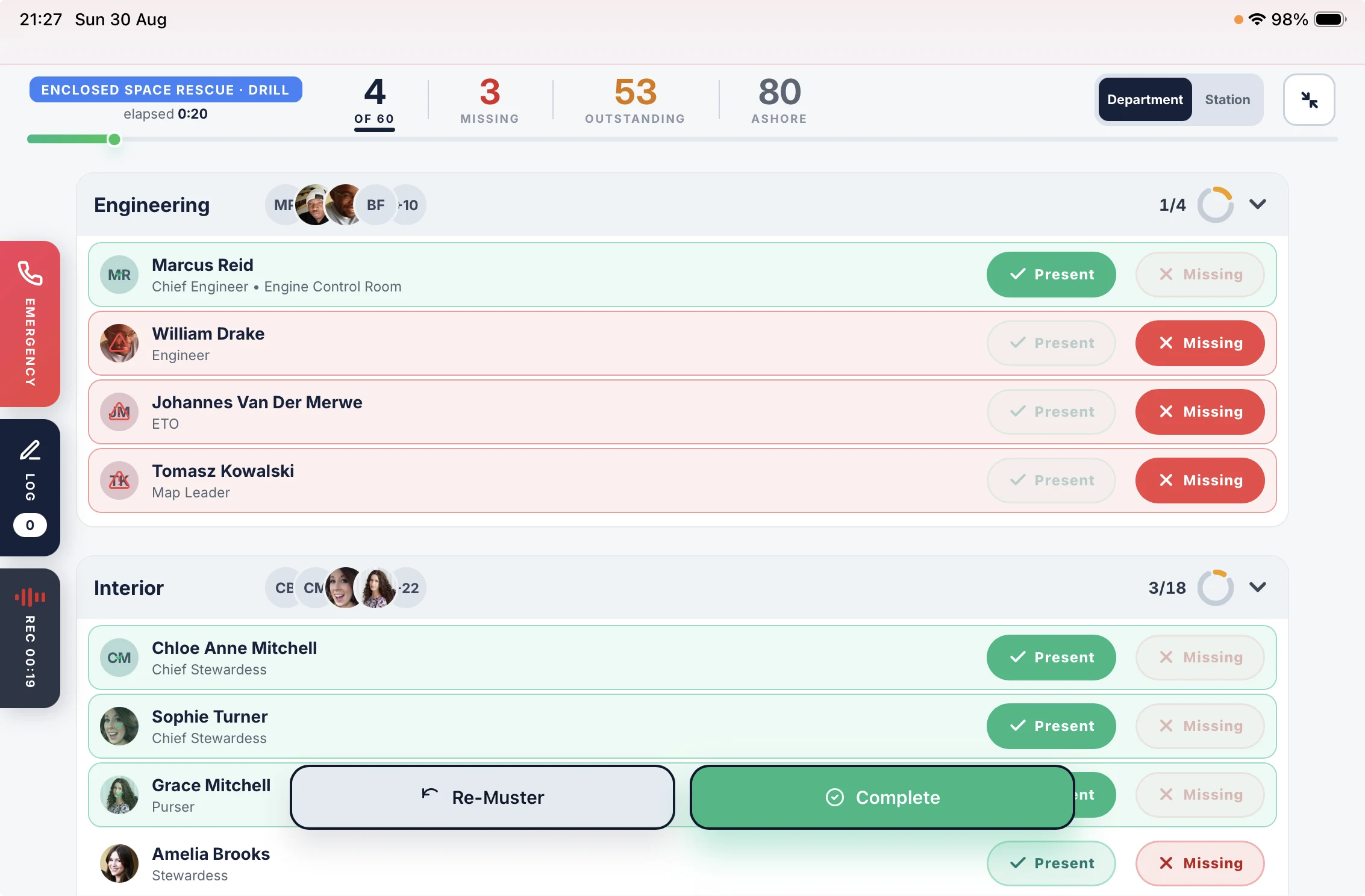
Run the drill. The record writes itself.
A paper muster list is signed off after the drill. This one is written while it runs.
- Called from who is aboard. Not last month’s crew list. Accounted for and missing update live, and the session becomes a drill report with time to muster and attendance.
- Station, role, equipment. Built once and carried into every drill. Crew see their own duties and the alarm signal for each emergency on their phones.
- Call for help without leaving the board. Fire, DPA and Medical, one button each, dialled from the iPad. Both sides of the call go into the recording.
- Re-muster in one action. Clear the board mid-drill and count every head again.

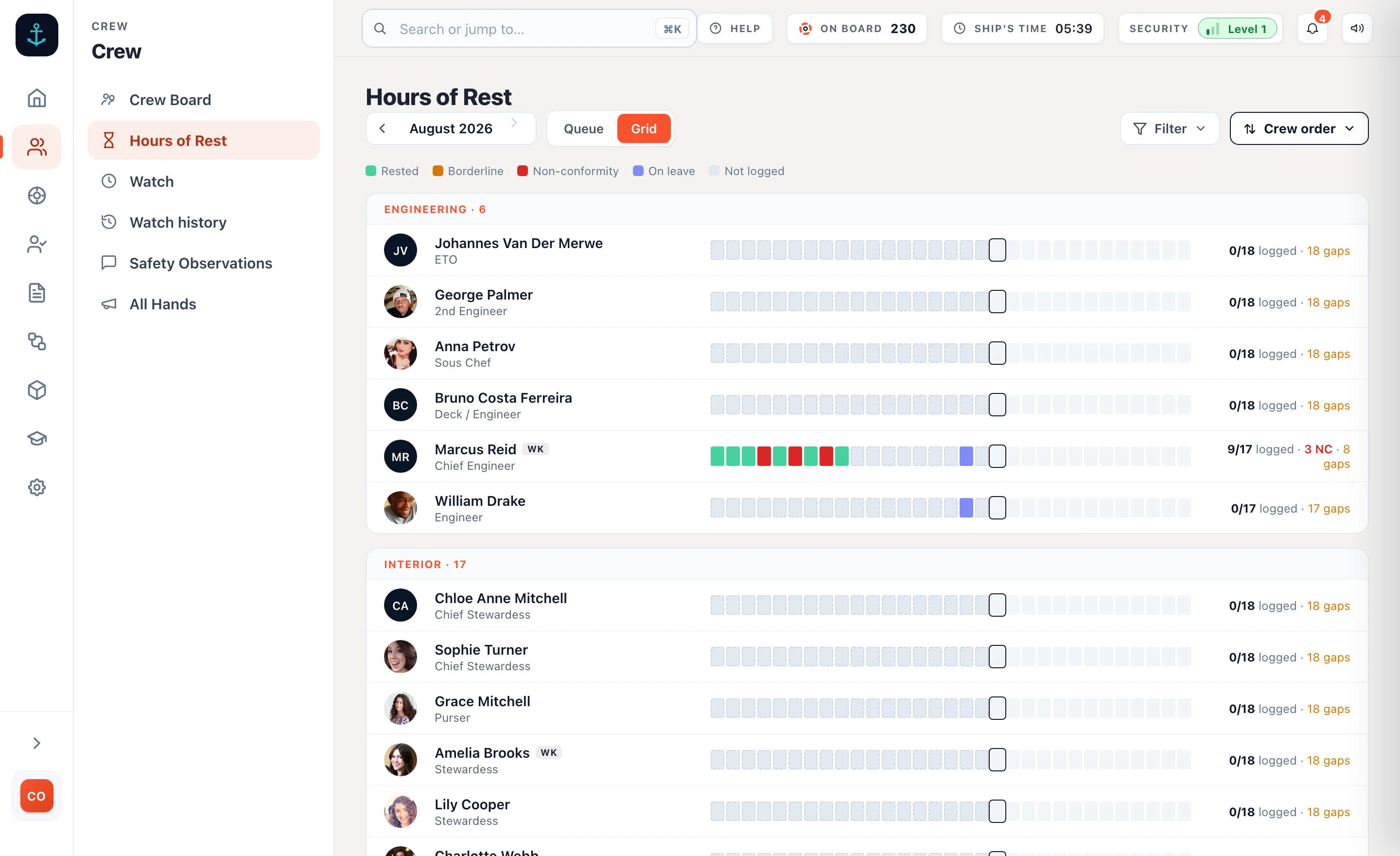
Logged on the day, checked as they go.
Crew log rest on their own phones. The rule is applied while there is still something you can do about it.
- Checked to MLC 2006. Ten hours in any 24, 77 in any seven days, computed on the phone itself — so it works with no signal.
- A non-conformity goes to a person. The Head of Department reviews it and it comes back as a thread, not a red cell nobody owns.
- Leave is part of it. Last day worked and first day back, so a month off does not read as a month of missing records.
- The month ends in a signature. Signed off and filed, in the vessel’s own day, with no timezone to argue about.
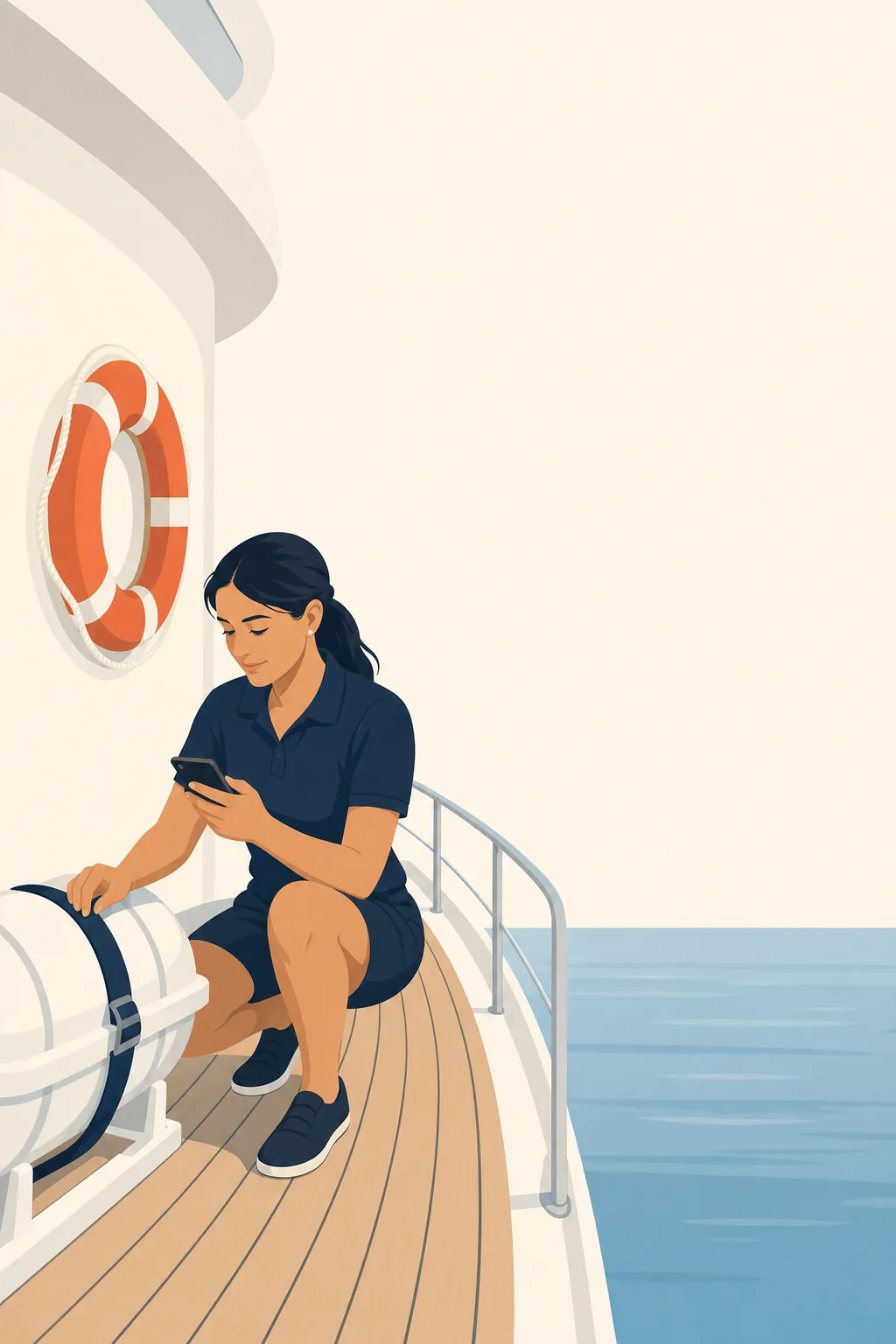
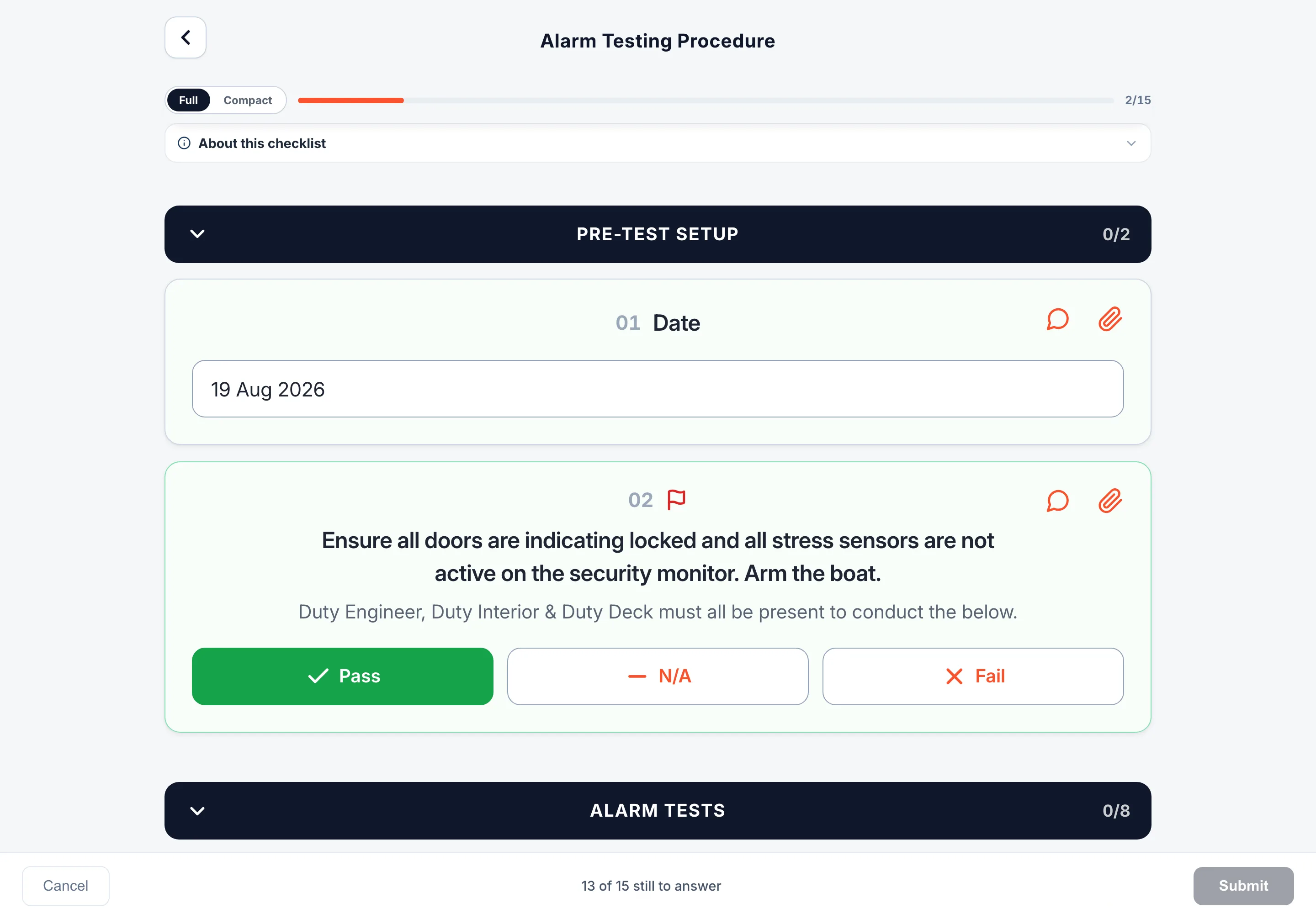
Completed where the work is.
On the phone in their pocket, at the equipment, not written up afterwards at a desk.
- Readings, photos and signatures. A temperature records the reading and the range it should be in. Safe or at risk covers the ones where pass and fail do not fit, and a photo can be required rather than optional.
- A fail becomes a follow-up. Anything that fails or gets flagged lands on the worklist carrying the check it came from. Nothing depends on somebody remembering to mention it.
- Every submission carries a name. Who completed it, when, what failed, and whether it has been closed out.
- Policies and forms. Send a policy out and see who has read and signed it. Your own forms come back as a PDF on the vessel’s letterhead. Contractors, surveyors and applicants get a link and a browser, with no account to create.
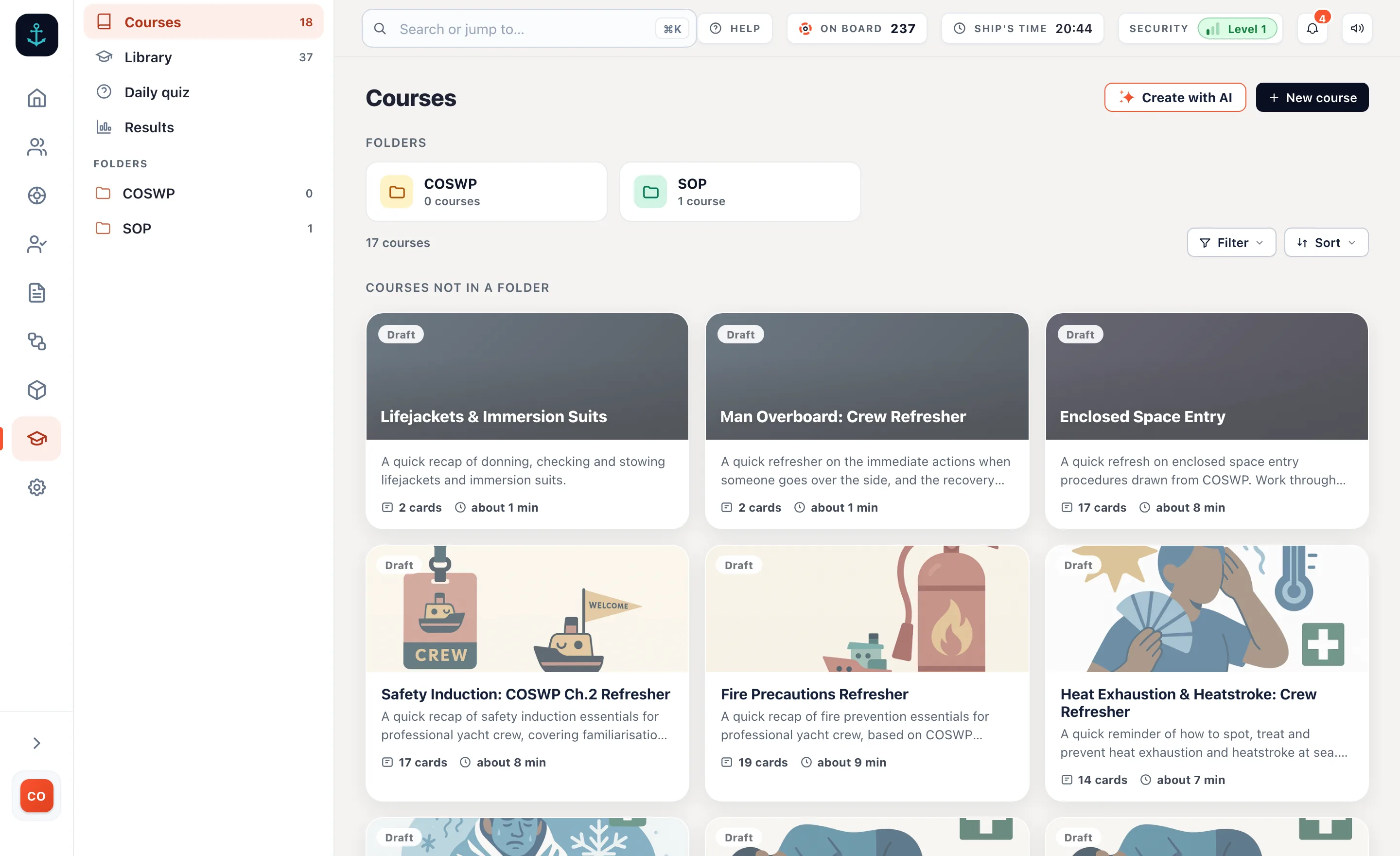
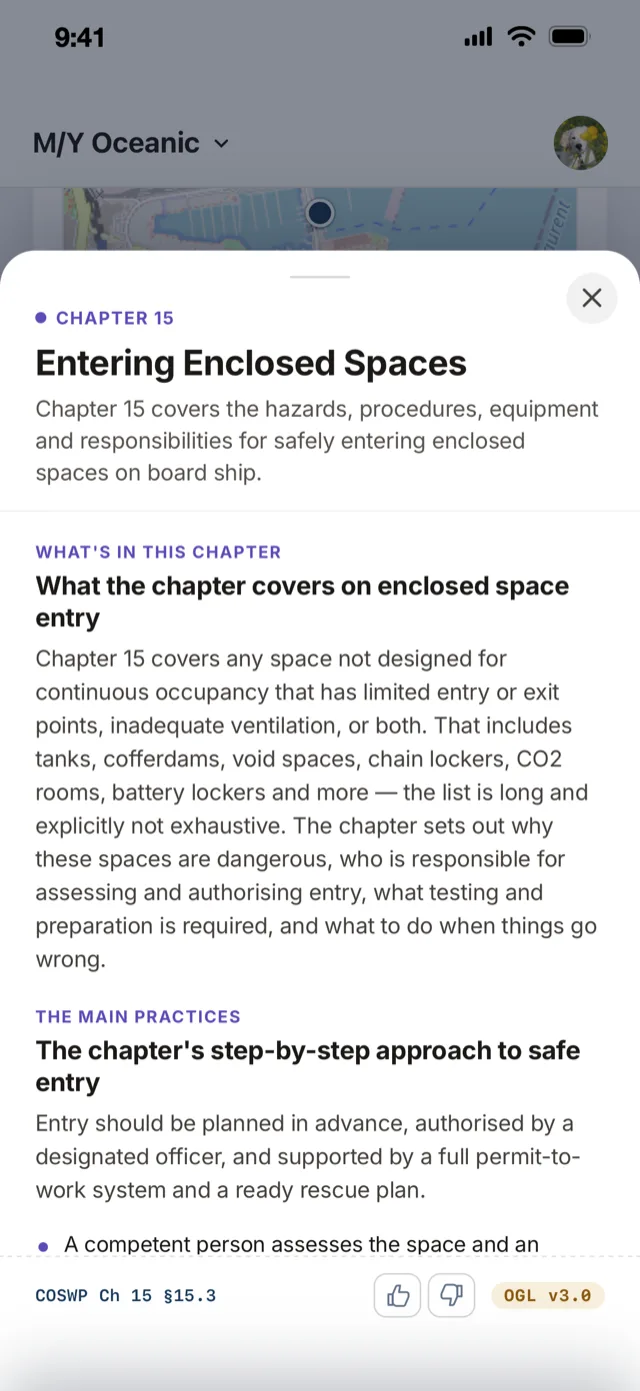
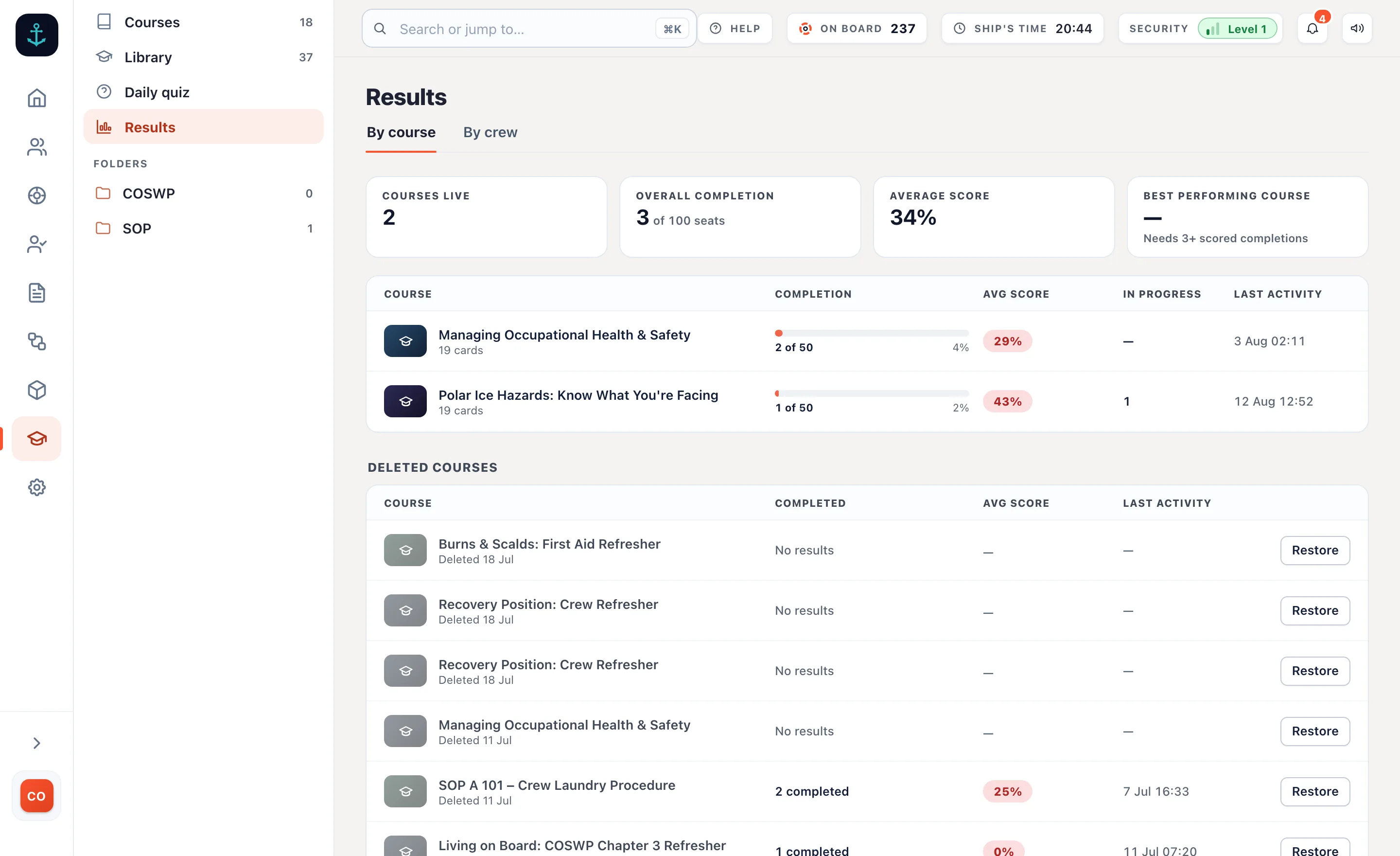
Training on your own equipment
The part a sign-in app was never going to do. Build the course on the locker you actually have, not a stock module about somebody else’s.
Cards, then questions. Start from the library or start from nothing. Refreshers taken on the phone in their pocket, not certified training.
Safety topics from the COSWP, cited to chapter and section, on every crew phone. Push one to the whole crew.
By course and by crew member. You find out where the understanding is thin while you can still do something about it.
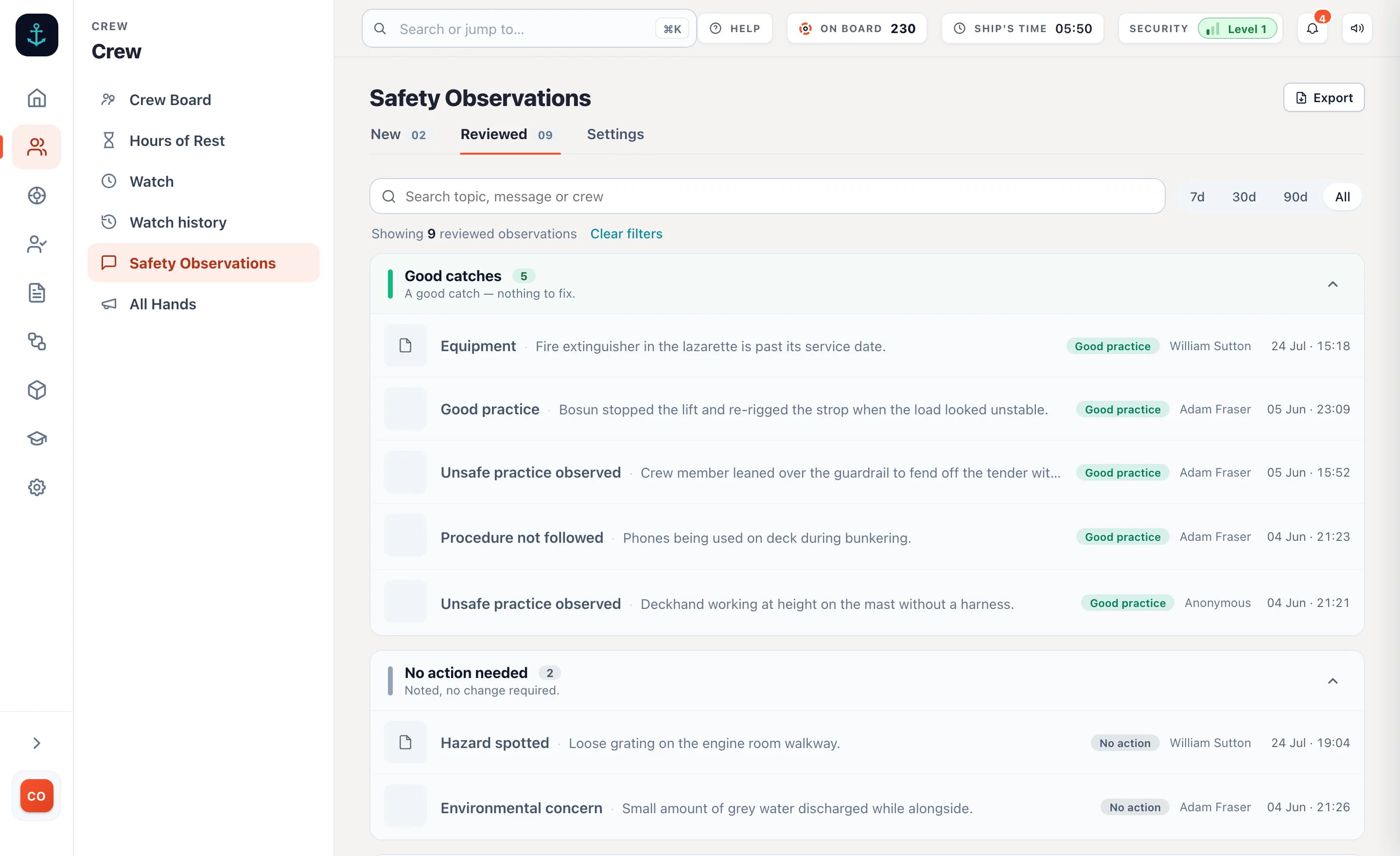
A good catch, a near miss, a hazard, or something about welfare that goes to the DPA. Sent anonymously, the report carries no crew member, no device and no account.
Put Hours of Rest and duties in every pocket.
Crew log hours, see their muster station and tick checklists at the equipment. The vessel keeps every record.
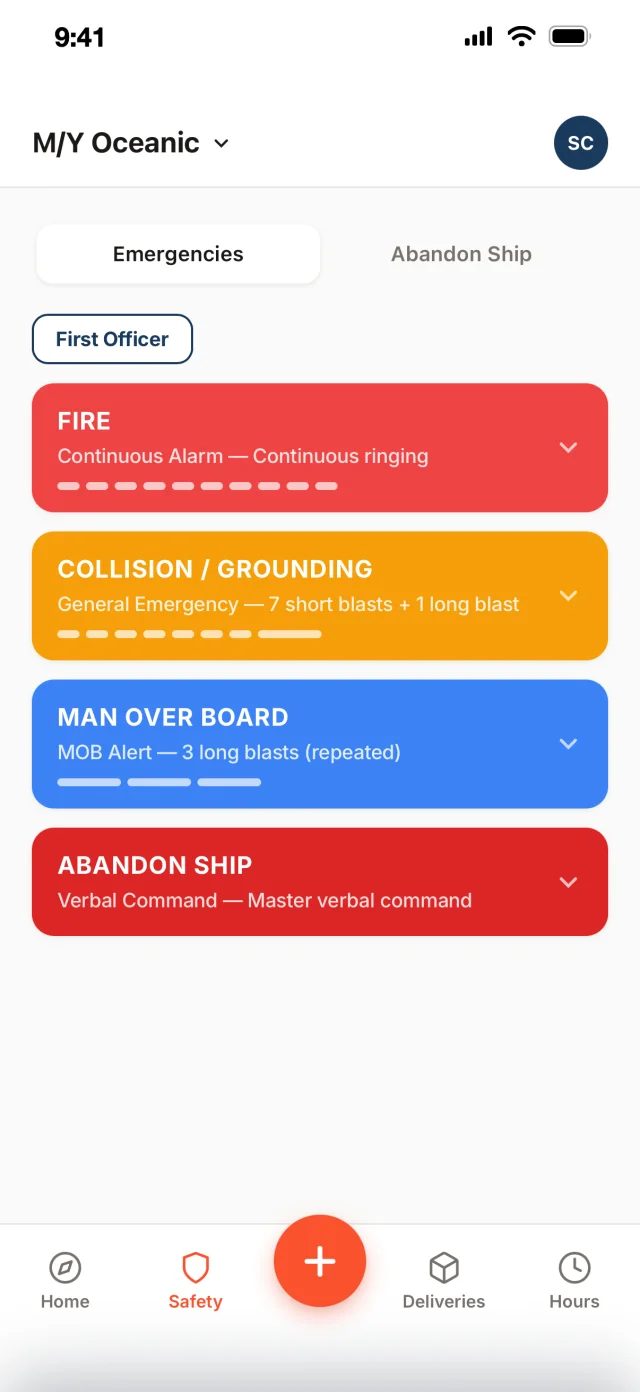
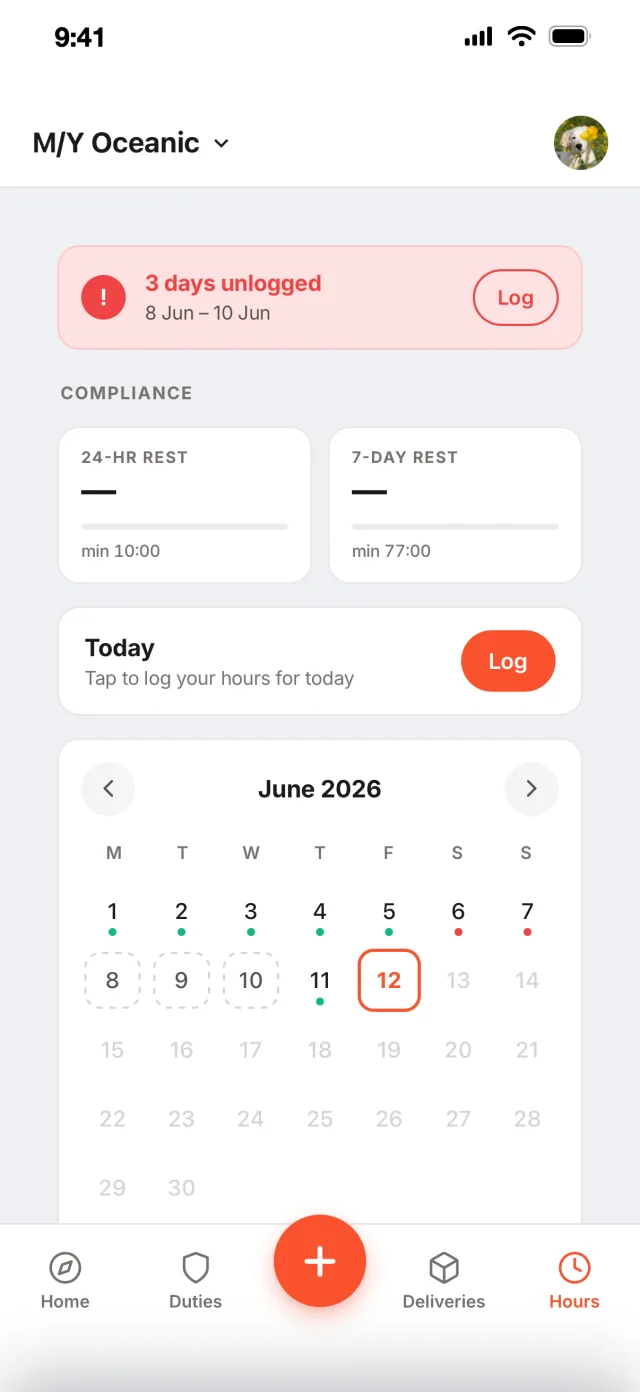
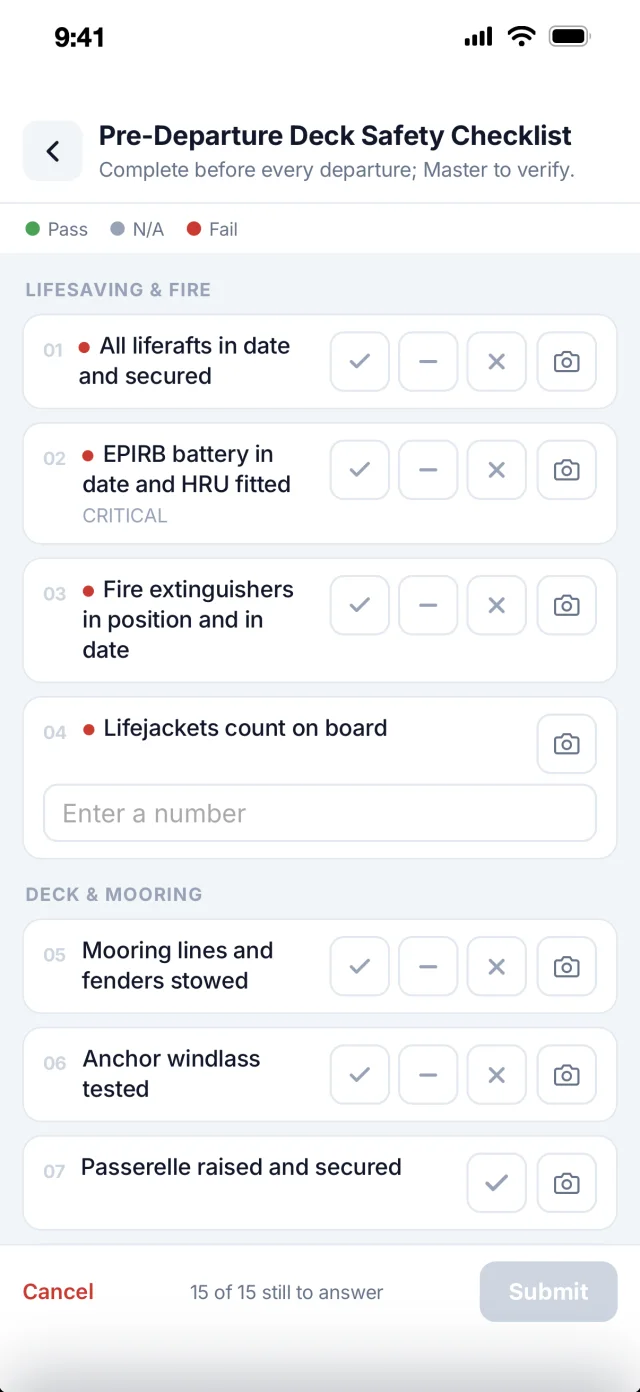
iOS and Android, on every plan, for every crew member.
Explore all features
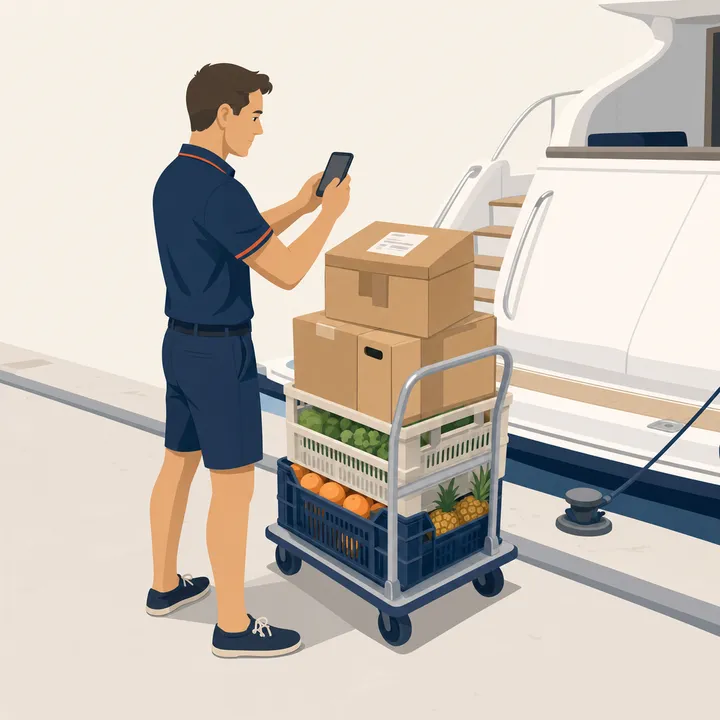
At the door
- Deliveries
- Keys and cards
- Vehicles and assets
- Visitor log
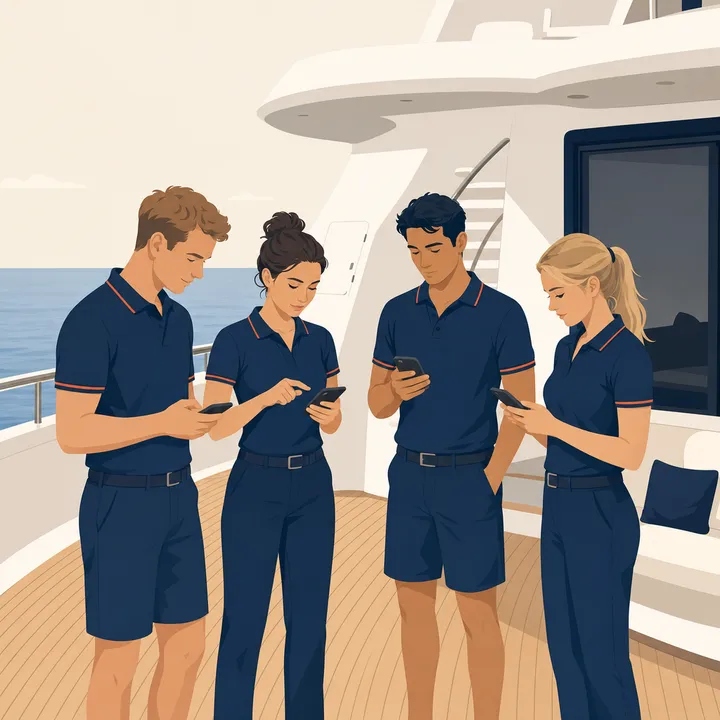
Across the crew
- Watch schedules
- Notices
- Safety documents
- Kiosk and crew modes
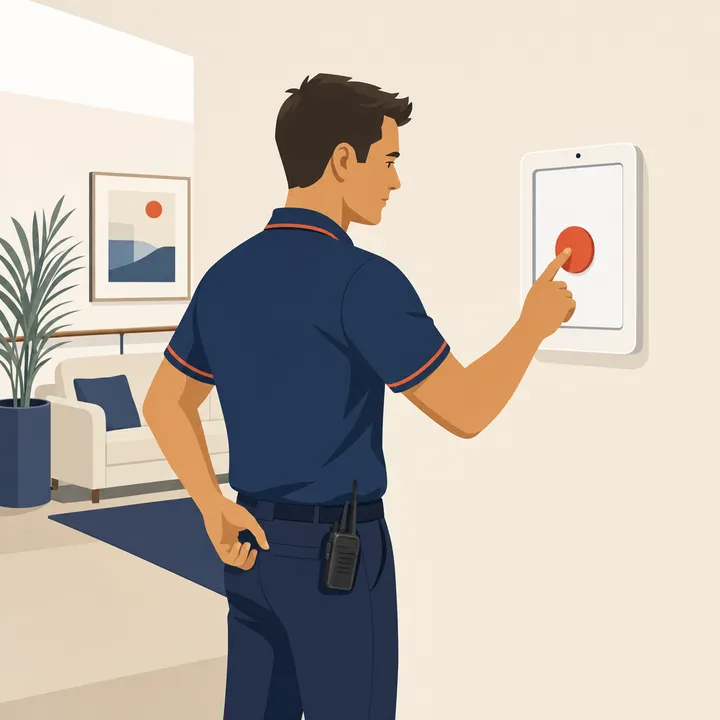
When it counts
- Emergency calling
- Emergency contacts
- Drill reports
- Tender Tracker
What vessels have recorded with it
The Muster App has become one of those tools we use without really thinking about it. It’s made everyday tasks easier and has also got the crew more engaged with safety and their responsibilities onboard.
Asked before buying.
What does the app actually cover?
The crew board, visitor and contractor check-in against the ISPS Code, muster and drills, Hours of Rest, checklists, training and safety observations, policies and forms, watch schedules, deliveries and the tender. One subscription per vessel, unlimited crew.
Do we have to use all of it?
No. Most vessels start with the door or the muster, because that is the one that hurts, and pick the rest up over a season. Nothing is switched on for you.
What does the crew have to install?
Muster Mate, free on iOS and Android, on the phone they already carry. The iPad app runs on the vessel’s own iPads and the admin runs in any browser.
Does it work without WiFi?
Check-ins queue on the iPad and sync when the connection returns, which matters in a yard. Hours of Rest are computed on the phone itself, so the rule is applied with no signal at all.
Can it replace the systems we already pay for?
That is usually the point. Vessels arrive running a sign-in tool and a rest-hours tool on separate subscriptions with separate crew lists. Side by side
What does it cost?
From £110 a month per vessel with unlimited crew, and a 14-day free trial. See pricing
Try it with your crew.
Free for 14 days. From £110 a month per vessel, on the iPads and phones you already have.
Unlimited crew. Refund policy